What 552 5.2.2 means
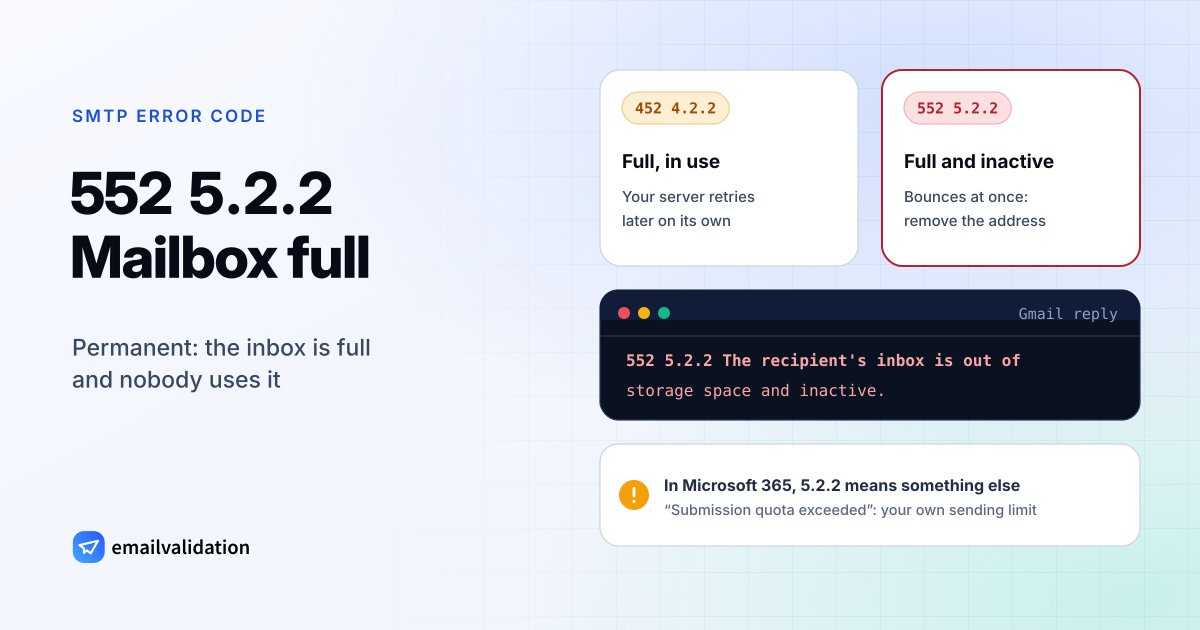
A 552 5.2.2 bounce means the recipient’s mailbox is full and the receiving server won’t wait for it to empty. RFC 5321 defines 552 as “Requested mail action aborted: exceeded storage allocation”. RFC 3463 defines X.2.2 as “Mailbox full”: “the user has exceeded a per-mailbox administrative quota or physical capacity.” The IANA registry pairs X.2.2 with exactly this basic code, 552.
There’s a tension in that pairing. RFC 3463 says the code “should be used as a persistent transient failure”, because the recipient can delete messages. A server that answers with a 5 instead of a 4 has decided that waiting won’t help. Your server gives up at once and sends you the bounce. The temporary form is 452 4.2.2, and your server retries after it.
552 5.2.2 at Gmail: full and inactive
Gmail uses both forms, and its texts show the difference (Gmail SMTP errors and codes):
| Gmail reply | Text | Meaning |
|---|---|---|
452 4.2.2 | The recipient's inbox is out of storage space. | Full, but in use: your server retries |
552 5.2.2 | The recipient's inbox is out of storage space and inactive. | Full and nobody uses it: permanent |
Both texts end with a pointer to Google’s storage help, which describes what a full account means for its owner: “You can’t send or receive emails” and “Messages sent to you go back to the sender.” Storage is shared with Google Drive and Google Photos.
“Inactive” is the important word. An account that is full and unused will stay that way. Google’s inactive account policy adds that personal accounts that have “not been used within a 2‑year period” may be deleted, and its storage page says content may be deleted after two years over quota. So a 552 5.2.2 address from Gmail is on its way out. Treat it like a dead address.
5.2.2 at Microsoft: two different meanings
Microsoft uses the same enhanced code for two opposite problems, depending on the product:
| Where | Text | Who has the problem |
|---|---|---|
| Exchange Server (on-premises) | Mailbox full | The recipient: their mailbox exceeded its storage quota |
| Exchange Online (Microsoft 365) | Submission quota exceeded | The sender: you exceeded Microsoft’s sending limits |
The first row comes from Microsoft’s Exchange Server 2013 NDR reference: “The recipient must reduce the size of the mailbox or the administrator must increase the storage quota before delivery can be successful.”
The second comes from the Exchange Online NDR reference. The bounce says “The message can’t be submitted because the sender’s submission quota was exceeded.” According to Microsoft’s article on this NDR, it appears when you “exceed the recipient rate limit (10,000 recipients per day)”, and “you need to wait one day before you can send email from your mailbox.” Microsoft also warns that the sending account might be compromised.
So read the words, not just the digits: “mailbox full” or “out of storage space” is about the recipient; “submission quota” is about you.
What causes 552 5.2.2
- An abandoned mailbox. The owner left the company, switched providers or forgot the account, and the inbox filled up. This is Gmail’s “inactive” case.
- A full mailbox at a server that doesn’t defer. Some servers answer a full mailbox with a permanent 552 right away instead of a 452.
- Your own sending volume (Microsoft 365). Mass mailings or a hijacked account push a mailbox over Microsoft’s sending limits.
How to fix 552 5.2.2 as the sender
- Gmail “out of storage space and inactive”: remove the address from your list. Nobody reads it, and sending again only adds to your bounces.
- Other servers, “mailbox full”: if the contact matters, reach them another way and ask them to free space. Try once more after a few weeks; if it bounces again, remove the address.
- Microsoft 365, “submission quota exceeded”: stop sending from that mailbox for a day. If you didn’t send that much mail, treat the account as compromised: change the password, check for forwarding rules you didn’t create, and tell your admin. Microsoft’s guide to responding to a compromised account lists the steps.
- Newsletters and campaigns: send them through an email service rather than a normal mailbox, so per-mailbox limits don’t apply to bulk mail. The guide to your email bounce rate covers how to keep bounces low.
If you’re the recipient or their admin
A full mailbox loses mail silently from the owner’s point of view: senders get bounces, the owner gets nothing. Delete large messages and attachments, empty the trash, and at Gmail check Drive and Photos, which share the quota. Admins can raise the mailbox quota or archive old mail. For mailboxes nobody uses anymore, set up forwarding or an auto-reply that names the right contact, or delete the mailbox so senders get a clear 550 5.1.1 instead.
Would email verification have prevented it?
Partly. A verification asks the receiving server whether it accepts the address, without sending a message. When the server answers that the mailbox is full, the email validation API returns the status risky with the sub-status mailbox_full and the recommended action retry_later, so you can hold the address back. A Microsoft 365 5.2.2 is about your own sending limit, which no check of the recipient can predict. Full-and-inactive mailboxes do tend to end up deleted, and then a verification marks them invalid: checking an older list with the bulk email verifier before a campaign removes the addresses that are gone. The closely related 550 5.2.1 (“The email account that you tried to reach is inactive”) and the full list of SMTP error codes help you sort the rest of your bounces. The guide to hard vs. soft bounces explains how your email tool counts each one.