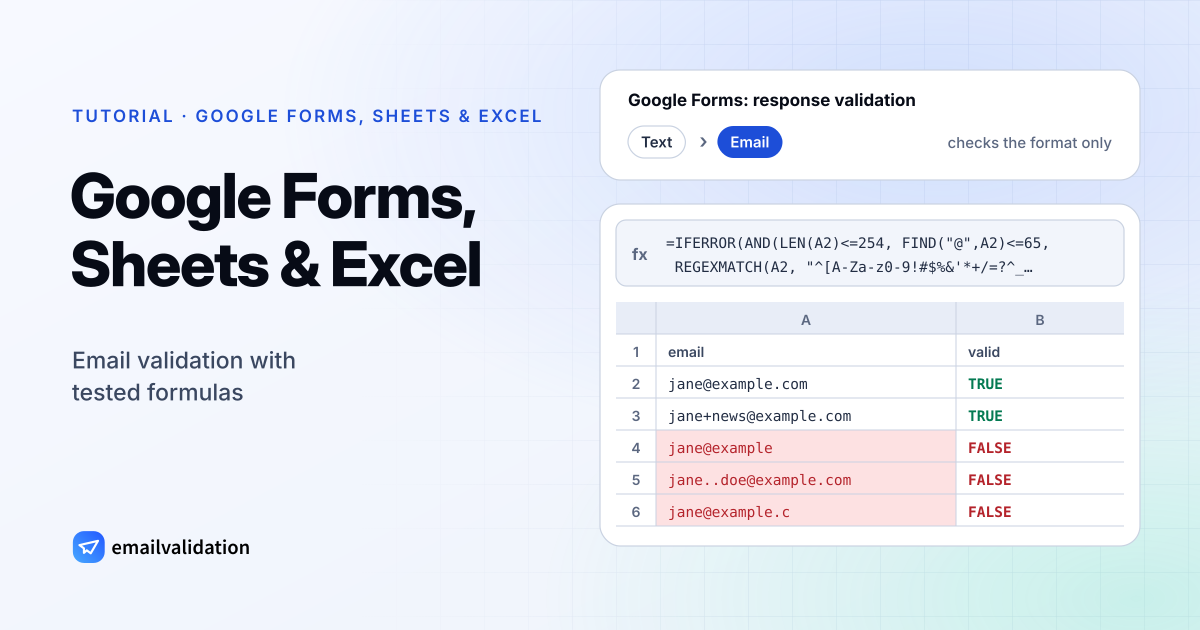
Google Form email validation is one rule on a Short answer question. What that rule can’t do is tell you whether the address works. This guide sets up the form, then gives tested formulas for flagging bad addresses in Google Sheets and Excel, and ends with checking which addresses can actually receive mail.
Collect email addresses in Google Forms
If you need the respondent’s own address, Google Forms can collect it for you instead of a question. In the form, open the Settings tab, click the arrow next to Responses, and under Collect email addresses choose one of two options (Google Docs Editors Help):
- Verified: respondents confirm the email address of their Google Account, which is collected with the response. Use it when everyone has a Google Account, for example inside your organization.
- Responder input: respondents type an email address before they submit. Only the Verified option ties the address to an account; here, whatever is typed is collected. If typos matter, use an email question with the checks below.
Google Forms email validation with response validation
For an email question, Google’s help on setting rules for your form gives these steps:
- Open the form and add a Short answer question.
- Click More (the three dots) on the question.
- Click Response validation.
- Choose the type of rule. For email, choose Text and the email option, which Google’s help describes as “Make sure the response is in email format
text@example.com.” - Optional: enter a message in the Custom error text field.
Google doesn’t document the exact rule behind the email option, and we couldn’t test it. If you want to control what is accepted, use a regular expression instead: in step 4, choose Regular expression, then Matches, and paste this pattern:
^[A-Za-z0-9!#$%&'*+/=?^_`{|}~-]+(\.[A-Za-z0-9!#$%&'*+/=?^_`{|}~-]+)*@([A-Za-z0-9]([A-Za-z0-9-]{0,61}[A-Za-z0-9])?\.)+([A-Za-z]{2,63}|xn--[A-Za-z0-9-]{2,59})$
It is the pattern from the email regex guide, rewritten without lookaheads. That matters because “Google products use RE2 for regular expressions” (REGEXMATCH help), and the RE2 syntax marks lookaheads such as (?=…) as not supported. Many email patterns found online rely on them. The pattern requires letters, digits or the allowed special characters before the @, dots only between characters, a domain with at least one dot, and a top-level domain of two or more letters (or an internationalized one in xn-- form). It doesn’t limit the length of the part before the @; the spreadsheet formulas below do.
Validate email addresses in Google Sheets
Form responses that end up in a sheet, imported lists and CRM exports all need the same check. Google Sheets has two functions for it.
ISEMAIL is built in: =ISEMAIL(A2) returns TRUE or FALSE. Google’s ISEMAIL help says it “checks if the value follows a commonly accepted format for email addresses but doesn’t verify its existence”. It doesn’t document which format, so we can’t tell you which edge cases it accepts.
REGEXMATCH lets you choose the rule. Put this in B2 and fill it down next to the addresses in column A:
=IFERROR(AND(LEN(A2)<=254, FIND("@",A2)<=65, REGEXMATCH(A2, "^[A-Za-z0-9!#$%&'*+/=?^_`{|}~-]+(\.[A-Za-z0-9!#$%&'*+/=?^_`{|}~-]+)*@([A-Za-z0-9]([A-Za-z0-9-]{0,61}[A-Za-z0-9])?\.)+([A-Za-z]{2,63}|xn--[A-Za-z0-9-]{2,59})$")), FALSE)
LEN caps the whole address at 254 characters, FIND keeps the part before the @ at 64 characters or fewer, and IFERROR turns the error that FIND gives for a value without an @ into FALSE. If your spreadsheet’s language settings use semicolons between function arguments, replace the commas between the arguments (not the ones inside the pattern).
To use a check as you type, select the column and open Data > Data validation > Add rule (Google Docs Editors Help). Under Criteria, pick the built-in valid-email option or the custom-formula option with the formula above; Google’s Apps Script reference lists these two criteria as “Requires that the input is in the form of an email address” and “Requires that the input makes the given formula evaluate to true” (DataValidationCriteria). Invalid input is rejected; under Advanced options, “If the data is invalid”, you can show a warning instead.
To highlight bad addresses that are already in the sheet, use the helper column with conditional formatting: select the addresses from A2 down, click Format > Conditional formatting, and under “Format cells if” choose Custom formula is (Google Docs Editors Help) with:
=AND($A2<>"", $B2=FALSE)
Validate email addresses in Excel
Which formula you use in Excel depends on your version.
Excel for Microsoft 365 (Windows and Mac) has REGEXTEST, which uses the PCRE2 flavor. Microsoft notes that it checks “whether any part of supplied text matches”, so the ^ and $ anchors in the pattern are essential:
=IFERROR(AND(LEN(A2)<=254, FIND("@",A2)<=65, REGEXTEST(A2, "^[A-Za-z0-9!#$%&'*+/=?^_`{|}~-]+(\.[A-Za-z0-9!#$%&'*+/=?^_`{|}~-]+)*@([A-Za-z0-9]([A-Za-z0-9-]{0,61}[A-Za-z0-9])?\.)+([A-Za-z]{2,63}|xn--[A-Za-z0-9-]{2,59})\z")), FALSE)
The pattern ends with \z instead of $: in PCRE2, $ also matches before a line break at the very end, so a cell that ends with Alt+Enter or came from a CSV import would pass. (Google Sheets uses RE2, where $ already means the end of the text.)
All other versions can use a formula without regular expressions. It’s looser, but catches the common mistakes:
=IFERROR(AND(LEN(A2)<=254,LEN(A2)-LEN(SUBSTITUTE(A2,"@",""))=1,ISERROR(FIND(" ",A2)),ISERROR(FIND("..","."&SUBSTITUTE(A2,"@",".")&".")),ISNUMBER(FIND(".",A2,FIND("@",A2)))),FALSE)
What each part checks:
LEN(A2)-LEN(SUBSTITUTE(A2,"@",""))=: exactly one @.1 ISERROR(FIND(" ",A2)): no spaces.FIND("..",": the address with a dot added at both ends and the @ replaced by a dot must not contain two dots in a row. That one test rejects a dot at the start or end, two dots in a row, a dot next to the @, and an empty part before or after the @.."&SUBSTITUTE(A2,"@"," .")&" .") ISNUMBER(FIND(": the domain contains a dot..",A2,FIND("@",A2)))
Microsoft’s own data validation help has a simpler email example, =ISNUMBER(FIND("@",B4)), which only checks for an @.
To enforce either formula on entry, select the cells, then on the Data tab, in the Data Tools group, select Data Validation. On the Settings tab, under Allow, choose Custom and enter the formula, written for the first selected cell. On the Error Alert tab, the style Stop makes users fix the entry; Warning lets them continue.
Two limits from Microsoft’s help on data validation: validation “is designed to show messages and prevent invalid entries only when users type data directly in a cell”, and “when data is copied or filled, the messages do not appear.” For pasted or imported lists, apply the rule and then use Data > Data Tools > Data Validation > Circle Invalid Data to mark the cells that break it.
Test results for the formulas
We couldn’t run Google Forms, Google Sheets or Excel for this guide, so we tested the parts separately: the regular expression with Go’s regexp package (Go 1.27), which implements RE2 syntax, and with PCRE2 10.42 through pcre2grep, with identical results (pcre2grep reads line by line, so we checked the value ending in a line break with Perl, whose $ and \z work as in PCRE2); the LEN/FIND/IFERROR wrapper and the formula for other Excel versions by reproducing the spreadsheet functions in Python. The formula for other Excel versions also gave these results in LibreOffice Calc 24.2 in our first run on October 10, 2026.
| Address | Regex formula (Sheets, Excel 365) | Formula for other Excel versions |
|---|---|---|
jane@example.com | ✓ | ✓ |
jane+news@ | ✓ | ✓ |
o'brien@ | ✓ | ✓ |
JANE@EXAMPLE.COM | ✓ | ✓ |
jane@ | ✓ | ✓ |
jane@ | ✓ | ✓ |
jane@example | ✗ | ✗ |
.jane@ | ✗ | ✗ |
jane | ✗ | ✗ |
jane..doe@ | ✗ | ✗ |
jane@ | ✗ | ✗ |
jane@ | ✗ | ✗ |
jane doe@example.com | ✗ | ✗ |
jane@ | ✗ | ✗ |
jane@example,com | ✗ | ✗ |
jane@ | ✗ | ✗ |
jane@example.c | ✗ | ✓ |
jane@-example.com | ✗ | ✓ |
jane@ | ✗ | ✓ |
josé@example.com | ✗ | ✓ |
| 65 characters before the @ | ✗ | ✓ |
jane@example.com + trailing space | ✗ | ✗ |
jane@example.com + line break | ✗ | ✓ |
| Empty cell | ✗ | ✗ |
The Google Forms pattern alone gives the same results as the regex formula except for the 65-character case, which it accepts. Trailing spaces are common in pasted lists, and a line break at the end slips through the formula for other Excel versions; =TRIM(CLEAN(A2)) in a helper column removes both before you check.
Check that the addresses actually exist
A formula can only say that jane.doe@example.com is shaped like an email address. It still bounces: example.com accepts no mail. Typos in real domains, deleted mailboxes and disposable inboxes look just as valid. To find those, each address has to be checked with its mail server.
- A few addresses, no account: paste them into the bulk email verifier. It takes up to 50 addresses per run; without an account it checks a few addresses an hour.
- A whole sheet: export the responses or the list as a CSV file and send it to the bulk endpoint of the email validation API:
curl https://api.emailvalidation.io/v1/bulk \
  -H "apikey: $EMAILVALIDATION_KEY" \
  -F file=@responses.csv \
  -F email_column=email
email_column names the column with the addresses (its header, or its position from 1). The answer is the queued job. When it has finished, GET /v1/bulk/{job_id}/results?format=csv returns your file with every original column plus 18 emailvalidation_* columns, ready to import back into Sheets or Excel. Cells that start with =, +, - or @ get a leading apostrophe so the spreadsheet doesn’t run them as formulas. Duplicates and invalid rows don’t use up requests. Large lists can take a day or longer, because every receiving mail server is checked; check the job about once a minute or pass a webhook_url. The email list cleaning service page has the details.
The last three columns tell you what to do with each row: emailvalidation_status (valid, invalid, catch_all, risky, do_not_mail or unknown), emailvalidation_sub_status and emailvalidation_. Remove the rows marked suppress: undeliverable and disposable addresses. emailvalidation_state is still there too (deliverable, undeliverable or unknown). Addresses on catch-all domains, which accept every address, come back as deliverable with the status catch_all and the action send_with_caution; see catch-all email for how to treat them.
- Every new form response: Zapier has a Google Forms trigger, “New Form Response”, and the emailvalidation.io app on Zapier has the action “Verify E-Mail Address”. Connected through the Zapier integration, they check each address as it comes in, and a Google Sheets action after them can write the result back to the response sheet.
For the same checks in code, see the guides for HTML forms and JSON Schema.
Sources
All checked October 29, 2026:
- Google Docs Editors Help: Set rules for your form, View and manage form responses, ISEMAIL, REGEXMATCH, Create an in-cell dropdown list (data validation menu), Use conditional formatting rules
- Google Apps Script: Enum DataValidationCriteria
- Microsoft Support: Apply data validation to cells, More on data validation, REGEXTEST function
- RE2 syntax; Zapier: Google Forms integrations, Emailvalidation integrations